Eliud's Running World.

How to Export your run

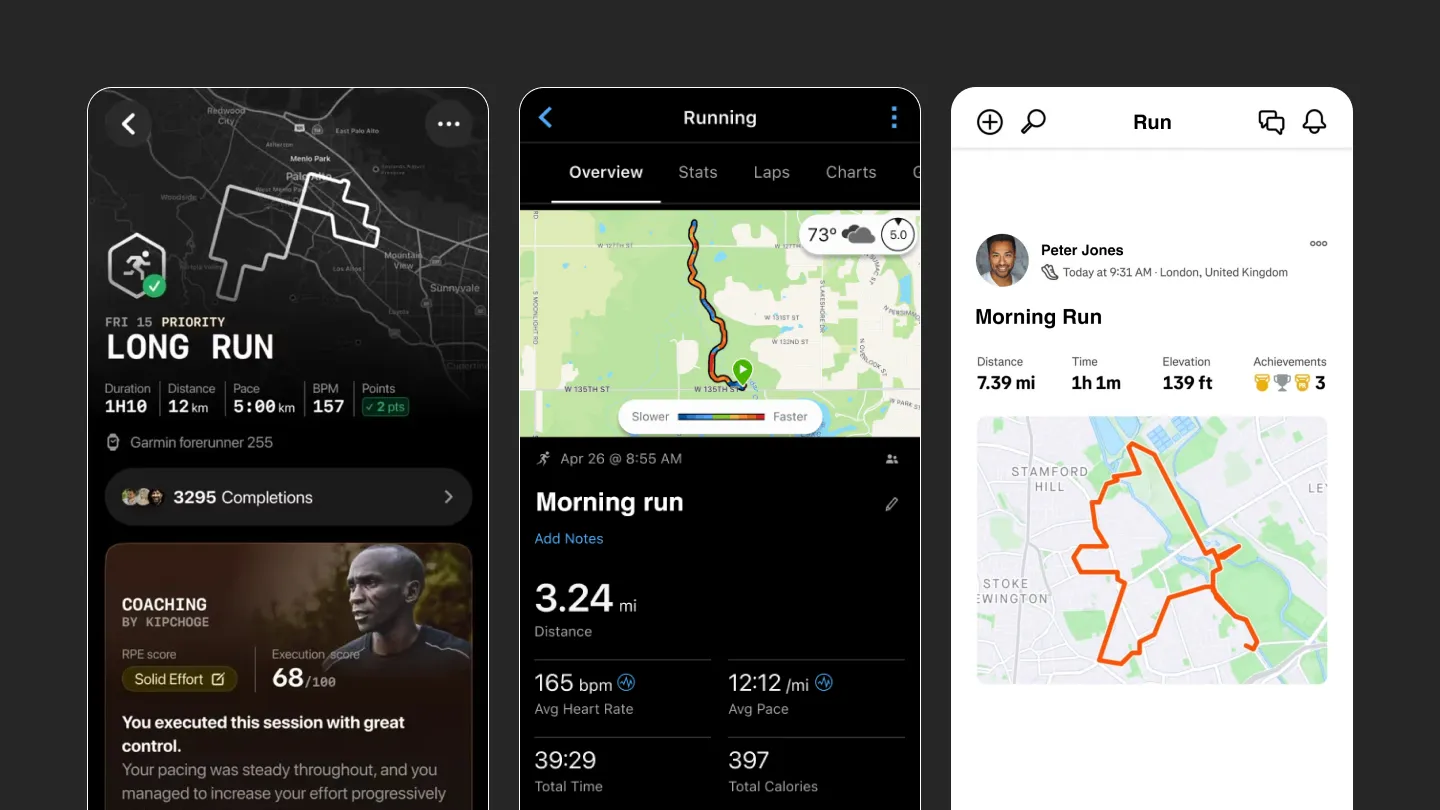
In order to submit your run to Eliud's cause, you'll need a .FIT file. On this page you'll find instructions on how to export that from popular apps and devices.
Garmin Connect

Web & App

  1. Open a browser and go to connect.garmin.com and log in.
  2. In the left sidebar, click ActivitiesAll Activities.
  3. Click the title of the activity you want to export to open its detail page.
  4. Click the gear icon (⚙) in the top-right corner of the activity page.
  5. Select Export Original. This downloads a .zip file containing your .FIT file.
  6. Unzip the downloaded file — your .fit file is inside.

Tip: Make sure you open the activity's detail page first. The export option is not available from the Activities list view.

Strava

Web

  1. Go to strava.com in a browser and log in.
  2. Click on the activity you want to export.
  3. Click the three-dot menu (…) on the activity page.
  4. Select Download .FIT (or Export Original — if the activity was recorded on a FIT-compatible device, the file will be in .FIT format).

Tip: Exporting via the mobile app is not supported. You must use the Strava website on a desktop browser.

Polar Flow

Web

  1. Go to flow.polar.com and log in.
  2. Click on the training session you want to export.
  3. Click the export icon (a downward arrow) in the top-right corner of the session.
  4. Select FIT from the list of available formats.
  5. Your .fit file will download immediately.
Suunto

App

  1. Open the Suunto app on your phone.
  2. Tap the activity you want to export.
  3. Tap the three-dot menu (…) in the top-right corner.
  4. Select Export as FIT.
  5. Choose how you want to share or save the file (e.g. Files, email, etc.).
Wahoo SYSTM

App & Web

  1. Open SYSTM and go to SettingsMy Account.
  2. Find your completed workout.
  3. Select Send FIT File — Wahoo will email you a download link for the .FIT file.
Wahoo ELEMNT

App & Web

  1. Open the Wahoo Fitness app on your phone.
  2. Tap the activity you want to export.
  3. Tap the share icon and select Export as FIT.
COROS

App

  1. Open the COROS app on your phone.
  2. Tap the activity you want to export.
  3. Tap the share / export icon.
  4. Select Export Data → choose FIT as the format.
  5. Save or share the .fit file via your phone's share options.
Apple Watch / Apple Health

Third-party tool required

Apple does not offer a native .FIT export option. You will need a third-party app to do this.

  1. Download an app such as HealthFit or RunGap from the App Store.
  2. Grant the app access to your Apple Health data.
  3. Select the activity you want to export.
  4. Choose Export as FIT and save or share the file.
Is your app or device not listed above?

Not every fitness app or device supports .FIT export, but here are some general options that might help:

  1. RunGap (iOS/Android) — acts as a hub for syncing and exporting workouts between many fitness platforms, often with .FIT export support.
  2. SyncMyTracks (Android) — lets you export and convert workouts from many apps to .FIT format.

If none of these work for you, try searching for it. Many apps have community guides or third-party sync tools available.


Out of focus scenic background.
Be the first to know about any updates on Eliud’s Running World
Sign up for the free newsletter and follow him on social media to go behind the scenes
Sign up for our free newsletter
Thank you! You've successfully subscribed to the newsletter!
Oops! Something went wrong while submitting the form.
Host Eliud on your continent or any other questions?